Local Network/Device Access
Since autumn 2025, browsers show a new “Local Network/Device Access” prompt—please allow it in Quill, as it’s safe and required for eID signing.
Learn more → Read the full instructions
I'm using a Vasco reader but it's not working
CCID and pinpad readers are supported. Do not forget to install the right drivers, for example for the 870: https://www.onespan.com/resources/digipass-ccid-filter-driver-v21-windows.com/Images/vasco_ccid_flt_2.1.0.1.zip
I have installed the Dioss middleware, but there still appears a red icon in the system tray.
This means that our middleware:
- Can not find a card reader. Please connect a card reader (again) to the PC and see if the icon changes.
- Can find a connected card reader, but can not find a chip card. Please insert your Belgian eID card into the reader and check whether the icon in the system tray turns blue or green.
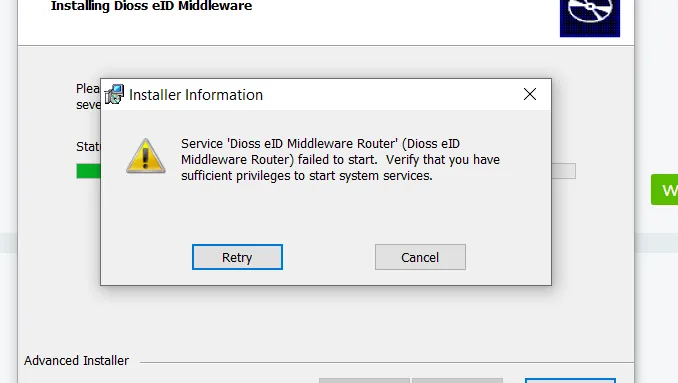
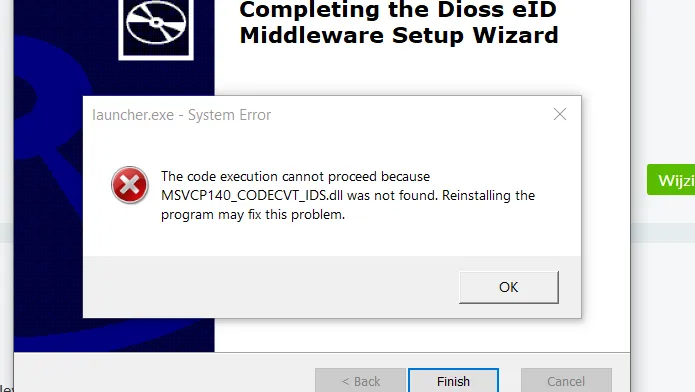
I get a "failed to start" error after installing the Dioss Middleware.
Most recent Windows 10 (and later) systems have required code runtimes installed by default. In older system these might be missing and prevent the Dioss Middleware from running correctly. Performing a Windows update or manually install the runtime yourself at https://aka.ms/vs/17/release/vc_redist.x86.exe and reinstall the Dioss Middleware to resolve this issue.
I have installed the Dioss middleware, but the website is still showing that the middleware cannot be found.
This means that the browser can not connect to the middleware.
- Check whether you are surfing on a secure connection (via https). If not, you are not in an official environment and you will not be able to work.
- If you already work via https and still get the above problem, you may work with a proxy. If it is a personal proxy you can adjust it via internet options> connections> LAN settings> Advanced (only possible if it was already checked). There you can add exceptions: "client.localmiddleware.be".
- Your proxy may have been configured at company level, and then you can contact your system administrator.
- Alternatively, it is possible that your DNS server client.localmiddleware.be can not resolve. You can test this by pasting https://client.localmiddleware.be:20202/version in your browser. If you get an error message as a result, this is the problem. You can solve this by adding the following entry to your hosts file (% SystemRoot% \ System32 \ drivers \ etc \ hosts): 127.0.0.1 client.localmiddleware.be
If the above steps do not solve your problems, there is probably a firewall that blocks the middleware.
Can I try the middleware on an independent website?
This can be done after installation via this website: https://middleware.dioss.io/ or https://middleware.dioss.io/demo.
The error message "Origin not found" or "origin not authorized" is displayed, what should I do?
Either you are not on a legitimate website, please note that you definitely surf via https. Furthermore, it is possible that a whitelist could not be updated. Download the latest version of the middleware and install it so that the whitelist can be checked.
The middleware icon remains red and the about box shows "Cardreaders: no service", what should I do?
The installation failed. Perform a clean install as described below.
My device keeps asking to reinstall the Dioss eId Middleware
In some cases the root of this problem is a duplicate install of the Dioss eId Middleware on your device.
You can check if this is the case by following these steps yourself or ask to have this checked:
- Enter "Add or remove programs" in your windows search bar and navigate to this window
- Enter "Dioss" in the search bar in this window
- If you see 2 or more versions of the Dioss eId Middleware you should delete both versions by clicking on the kebab menu ( ⋮ ) and press "uninstall"
- Reboot the device to complete the process and download the newest version on: Dioss Middleware Setup
I want to use the Dioss middleware on Citrix.
The installer can be found here. Some important remarks:
- if a Windows service version has already been installed, it must first be removed before installing the citrix (standalone) version
- this version automatically starts at user log in for XenDesktop.
- Virtual IP and virtual loopback must be enabled to enable each instance to listen to ports 20202 and 20201, see https://docs.citrix.com/en-us/xenapp-and-xendesktop/7-6/xad -deliver-virtual-ip.html
- Furthermore, the PCSC / Smart Card functionality must also be activated.
Error messages
The Dioss middleware component does not start. What should I do?
Download the middleware component by clicking the link “Download”. Your browser will ask to install this after downloading. If not, double-click on the download file and follow the installation instructions.
Error while authenticating. What should I do?
Remove your identity card from the read, wait for a while and then put your card back in the reader. If the problem persists, please contact the helpdesk.
What should I do if I forget my PIN code or use a wrong code?
If your forget your PIN code or if your card is blocked due to using a wrong code 3 times in a row, you can only obtain a new PIN code via your municipality. In this case, you should contact them. Afterwards you will receive a letter with a new PIN and PUK code. Then go to your municipality with your identity card and this letter along to revalidate your card.
What should I do when my session has been interrupted abruptly?
You should follow the procedure all over again.
What should I do when I lose my identity card or if it is no longer valid?
You are required to apply for a new identity card at your municipality. No data will be lost however.
My electronic signature certificate has been suspended or revoked. What should I do?
Go to the website eid.belgium.be to find a solution.
I cannot install the Dioss middleware, or the installation process is interrupted.
It is possible that the installation is prevented by your virus scanner. Perhaps the function to “trust” applications is activated, you need to indicate the connective middleware as trusted.
General
What do I have to install on my pc?
You have to install the Dioss middleware component to use this functionality. Your browser will show this message if this has not yet been installed:
To install the Dioss middleware component, click “Download”. Your browser will ask to install this after downloading. If not, double-click the download file and follow the installation instructions. After installation you will see an icon on your task bar (Windows) or on your menu bar (macOS) which indicates that the component “eID middleware” is active:
- Red: No card reader connected to you pc.
- Orange: An card reader has been detected.
- Blue: There is an smart card in the reader, not identified by any application.
- Green: There is an eID card in the reader.
Which information is saved when using my eID card?
The intrinsic information on your identity card is only used for authentication when logging in. Your PIN code or other confidential information cannot be tracked.
How do I receive my electronic identity card?
You can apply for your electronic identity card at the administrative department of your municipality.
Which data on my electronic identity card are readable immediately?
There are personal data on the microchip of your electronic identity card. Certain data are readable immediately because they are printed on the eID card itself. In order to see other data, a specific card reader is needed. So your address, which is on the microchip, is only readable with a suitable card reader.
What is a PIN code?
This is a 4 digit code. It is a private code and needs to stay this way. You receive your PIN code (Personal Identification Number) when picking up your new Belgian eID card at your municipality. It is possible to change this PIN code.
What is a PUK code?
This is an activation code, which you need to reactivate your card if you enter 3 times a wrong PIN code. Thanks to this PUK code, the civil servant of your municipality can make your card usable again and/or give you a new PIN code.
What happens when I forget or lose my PIN and PUK?
If you forget your PIN and PUK code, you can apply for new codes via the Federal Public Service of the Interior’s website.
How do I receive a card reader for an electronic identity card?
You can buy such a card reader easily in most major stores at a reasonable price. You will need this reader to use your eID, directly connected via usb to your pc or connected with your smartphone.
Use
Is it possible to work with the Dioss middleware from tablet or smartphone?
For iOS and Windows tablets there are opportunities with specific hardware. Please contact sales.smartsolutions@dioss.com for project opportunities.
What do the colours of the eID middleware component mean?
The eID Middleware component of Dioss allows you to read your identity card and to authenticate trough your eID. You will see an icon on your task bar (Windows) or on your menu bar (MAC) which indicates that the “Dioss middleware” component is active:
- Red: No card reader connected to you pc.
- Orange: An card reader has been detected.
- Blue: There is an smart card in the reader, not identified by any application.
- Green: There is an eID card in the reader.
I am already using Tax-on-Web. Do I have to install another component to read my identity card?
The Dioss middleware component of Dioss works independently of the one used by Tax-On-Web. You can use both simultaneously on the same computer. This one is compatible with the most recent browsers (Microsoft Edge, Chrome, Firefox and Safari) and is known to be totally safe and extremely reliable. Moreover, it is also very easy to install.
Privacy and protection
I fear that my privacy will be invaded if I use my eID online. Should I worry?
No, because the certificates and your PIN code are necessary for online transactions such as a signature. They are irrefutable proof of your identity and link your identity to the card. In combination with your PIN code, the certificates and keys confirm also the authenticity of your electronic signature.
Is it easy to steal someone’s identity in Belgium?
Identity fraud is rather impossible in Belgieum. In case of theft of your eID, the police will have your card blocked. When applying for a new one, the administrative department will check your identity by posing some questions. In this way it is not possible that someone takes your place.
Why is it important to keep your PIN code secret?
Because you need your PIN code to prove your identity online and it is essential that this code remains a secret. Never write down your PIN code on the card and never give this code to someone by telephone or mail.
How to choose a good PIN code?
Do not use an obvious digit combination, like your year of birth or those of your loved ones. Never write down your PIN code on the card and never give this code to someone by telephone or mail.
Where can I find more information on protection of privacy and eID?
If you want to learn more about security and protection of privacy, go to the website eid.belgium.be.
Who has access to my personal data on my electronic identity card?
Only the person who has your identity card and PIN code, and owns a card reader that can read these personal data.
Technical info
Logs
Windows logs
- GUI log: %LOCALAPPDATA%\Dioss\eIDMiddleware\logs
- Windows service log: %PROGRAMDATA%\Dioss\eIDMiddleware\logs
Mac logs
- Gui log: ~/Library/Logs/Dioss/eIDMiddleware
- Service log: /Library/Logs/Dioss/eIDMiddleware
Console logs
- Chrome: F12 and click on console
- Microsoft Edge: F12
- Firefox: F12
- Safari: Open Safari and choose Safari> Preferences> Advanced. Then select the checkbox 'Show Develop menu' in menu bar. Choose Develop> Show Error Console.
Test middleware
From a browser you can test with the following urls if the middleware is available. If the middleware is available you will get an overview of the version via the url
or our testpages
Clean install
In many cases a clean installation is a solution. This can be done as follows:
- Download the latest installer via this link
- Remove the eid middleware
- Via add / remove software (for windows 10, for example, explained via this link)
- Verify that the folder C:\Program Files (x86)\Dioss\eIDMiddleware and %PROGRAMDATA%\Dioss\eIDMiddleware have been deleted %LOCALAPPDATA%\Dioss\eIDMiddleware.
- Verify that the "eid middleware" service has stopped (see windows services) and close the services screen
- Run the installer as admin
- Note other possible issues in this FAQ (proxies, firewalls, ..)